Register riders
The rider registration mechanism differs from that of mechanics. While a workshop can create its account autonomously, riders must be invited by a workshop. There are two main ways to invite one or more riders:
Individual invitations
Once you have created your account and accessed the platform:
Access the invitations page
In the top navigation bar, click on the icon: located on the right. If you can't find the icon, you can click on this link.
Fill out the invitation form
Enter the rider's contact information. At minimum, you must fill in:
- Their first and last name
- Their email address
- The sports app they use to record their rides (Strava, Garmin Connect, etc.)
Although we also recommend filling in their phone number, so you can send them notifications via WhatsApp if the rider wishes.
Tip
The rider can update their contact information and notification preferences later. You can check the rider documentation here.
Existing rider
If the rider has already been previously registered on the platform by another workshop, read this section before continuing.
Send the invitation
Once you click "Save", a notification will automatically be sent to the rider with a link attached to the sports app, which they can use to authorize access to their bikes and rides. The rider has 48 hours to accept it before it expires.
As the rider accepts the invitation, we'll start synchronizing their bikes and rides automatically. This process may take a few minutes depending on the volume of data to synchronize.
If your workshop has already reached its plan's rider limit, the invitation isn't sent and you'll see the "You have reached your plan's limit" notice, with the spots you use. The same happens when you resend an expired invitation and when you request a transfer: it's all on the pricing page.
Synchronization completed
Once the rider has accepted the invitation and the initial synchronization is complete, you'll be able to see their bikes and usage in your workspace.
From this moment on, every time the rider records a new ride on their sports app, it will automatically synchronize and you'll be able to see the accumulated wear on each of their bikes.
Invitation expiration
Invitations expire 48 hours after they reach the rider. Until they accept it, you'll see their state ("Sending invitation" or "Confirmation pending") on their profile and in the riders list.
Why do they expire? Every plan includes a number of riders, and a pending invitation already reserves one of those spots for the invited rider. Without expiration, an invitation nobody answers (a wrong email, a customer who never saw it) would take up that spot forever. Besides, an invitation link gives access to your workshop, so we'd rather it didn't keep working indefinitely in someone's inbox.
If the rider doesn't accept it in time, their state changes to "Invitation expired", the link stops working, you'll get an "Invitation expired" notification, and the spot is free again. You can invite them again in two ways:
- With the "Resend invitation" button, from the rider's profile or from the notification itself. We send them a new invitation with the same contact information.
- By filling in the invitation form again with their email, if you need to fix their contact information.
Bulk imports
If you already have a list of customers, you don't need to invite them one by one. Upload the file you already have and we'll invite all of them for you.
Upload your file
In the top navigation bar, click on the icon: and choose "Import riders", or open this link.
Choose your file, the channel we'll use to notify the riders and their sports app. We accept Excel (.xlsx, .xls), CSV, TSV and JSON files, with up to 1000 riders and 5 MB.
There's no template to follow: we recognize the columns holding the name, surname, email and phone of each rider by their titles (in Spanish or English, like "Nombre", "Correo electrónico" or "Mobile") or, if the file has no titles, by their content. Any other column is ignored.
Review the riders
Before sending anything, we show you the columns we recognized and every rider found in the file. If we can't find the names or emails, we'll tell you straight away so you can fix the file.
Riders with wrong information won't be imported, and we'll show you why:
- Their name or email is missing, or the email is not valid.
- Their email is repeated in the file.
- They're already registered in sincrona.
- Their phone is missing or not valid, and you chose WhatsApp to notify them. With email, an invalid phone is just left out.
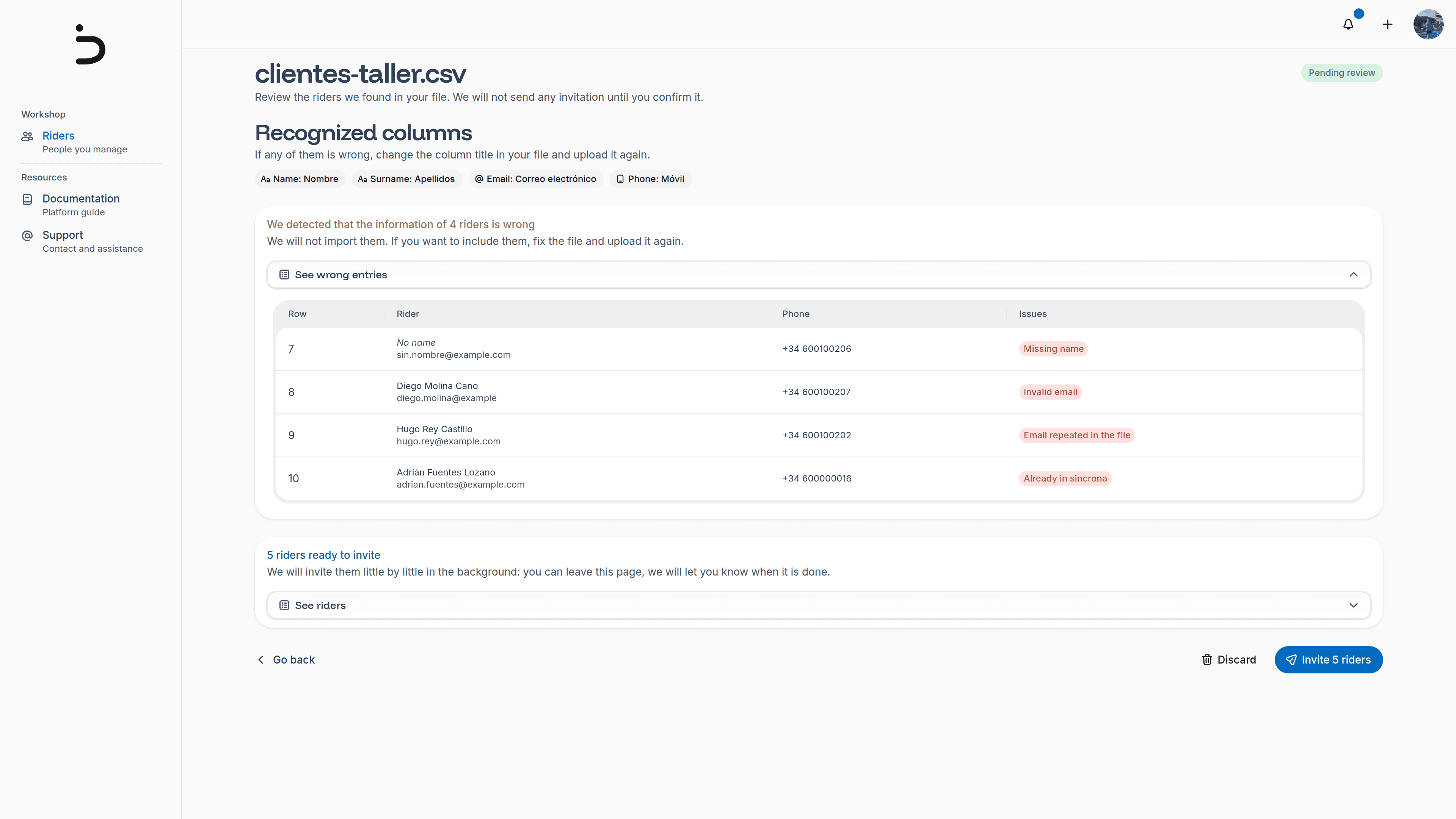
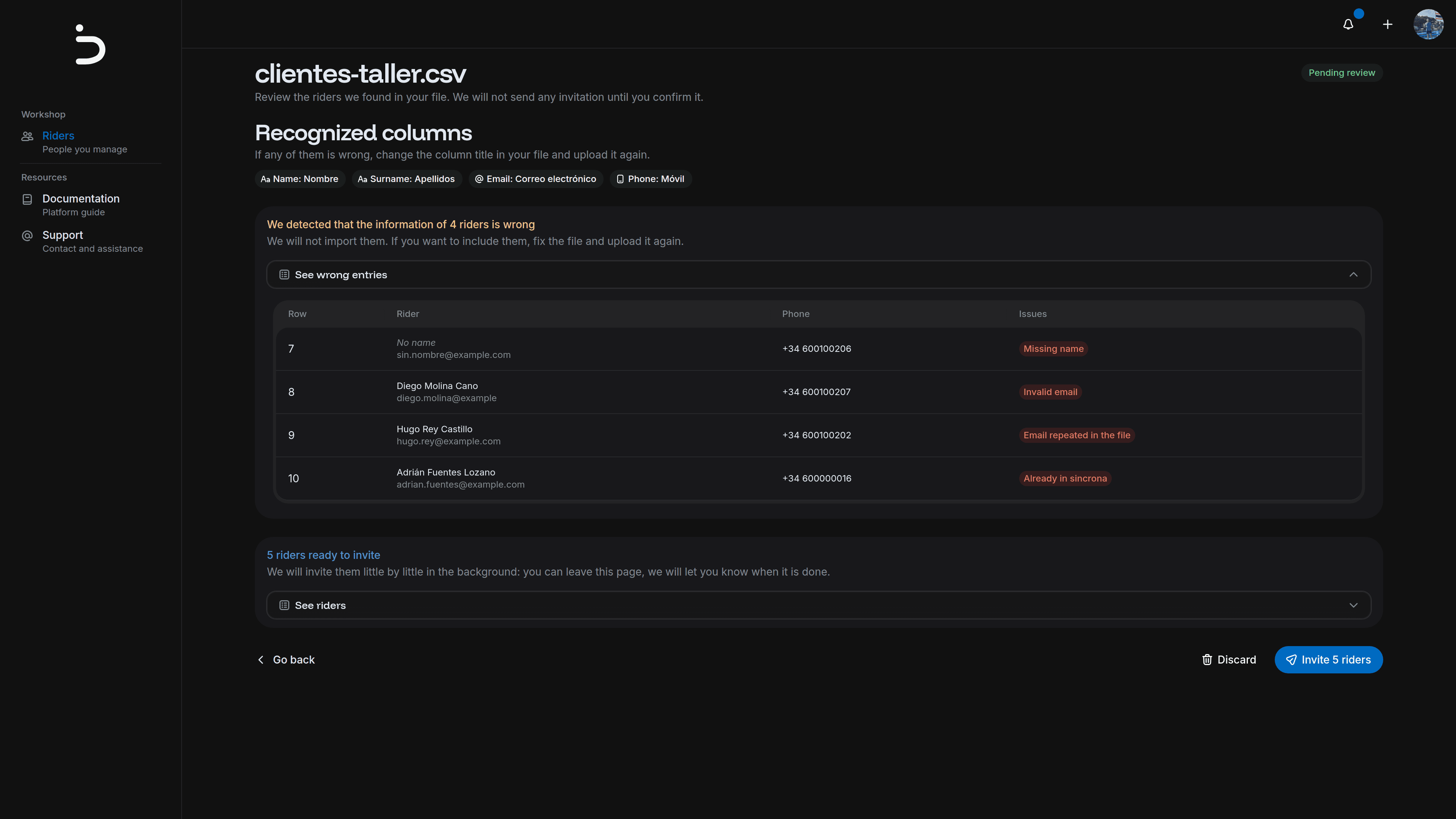
If you want to include them, fix the file and upload it again. Otherwise, confirm the import to invite the rest, or discard it.
When you confirm, we check that every rider we're about to invite fits in your plan. If they don't all fit, no invitation goes out and the import stays pending: you can confirm it once you make room.
Follow the progress
We invite the riders little by little in the background, so you can leave the page at any moment. From the import page you can follow the progress and check who got the invitation.
Once every rider has accepted their invitation or it has expired, the import changes to "Completed" and you'll get a notification with the number of riders invited, and the ones we couldn't invite (usually due to a temporary issue with the sports app or the notification channel). You can invite those one by one later.
If no rider accepted and every invitation expired, the import changes to "Cancelled" and you won't get any notification. You can resend the expired invitations from each rider's profile.
Privacy
Imports hold your customers' contact information, so we don't keep them forever: imports you don't confirm are discarded after a day, and completed imports after 30 days. The riders you invited stay in your workspace.
Existing rider
On our platform, a rider can only be associated with one workshop at a time. If you fill in the invitation form with the email of a rider who already belongs to another workshop, you'll see the "A rider with this email already exists" warning and the button will change to "Request transfer": instead of creating a new invitation, you're asking the rider to switch to your workshop.
The rider gets notified by email or WhatsApp and has 30 days to accept or reject the request the next time they log in to app.sincrona.cc. Until they answer, they stay with their current workshop.
If your workshop has no spots left on its plan by the time they accept, the transfer doesn't go through: the rider is told your workshop can't take more riders, and the request stays pending, ready for them to accept once you make room.
If the rider accepts
Their bikes, rides and full maintenance history move to your workshop right away. The previous workshop loses access to the rider and gets a "Rider transferred" notification, though it can still check the maintenance it performed on them in its service history.
Service history
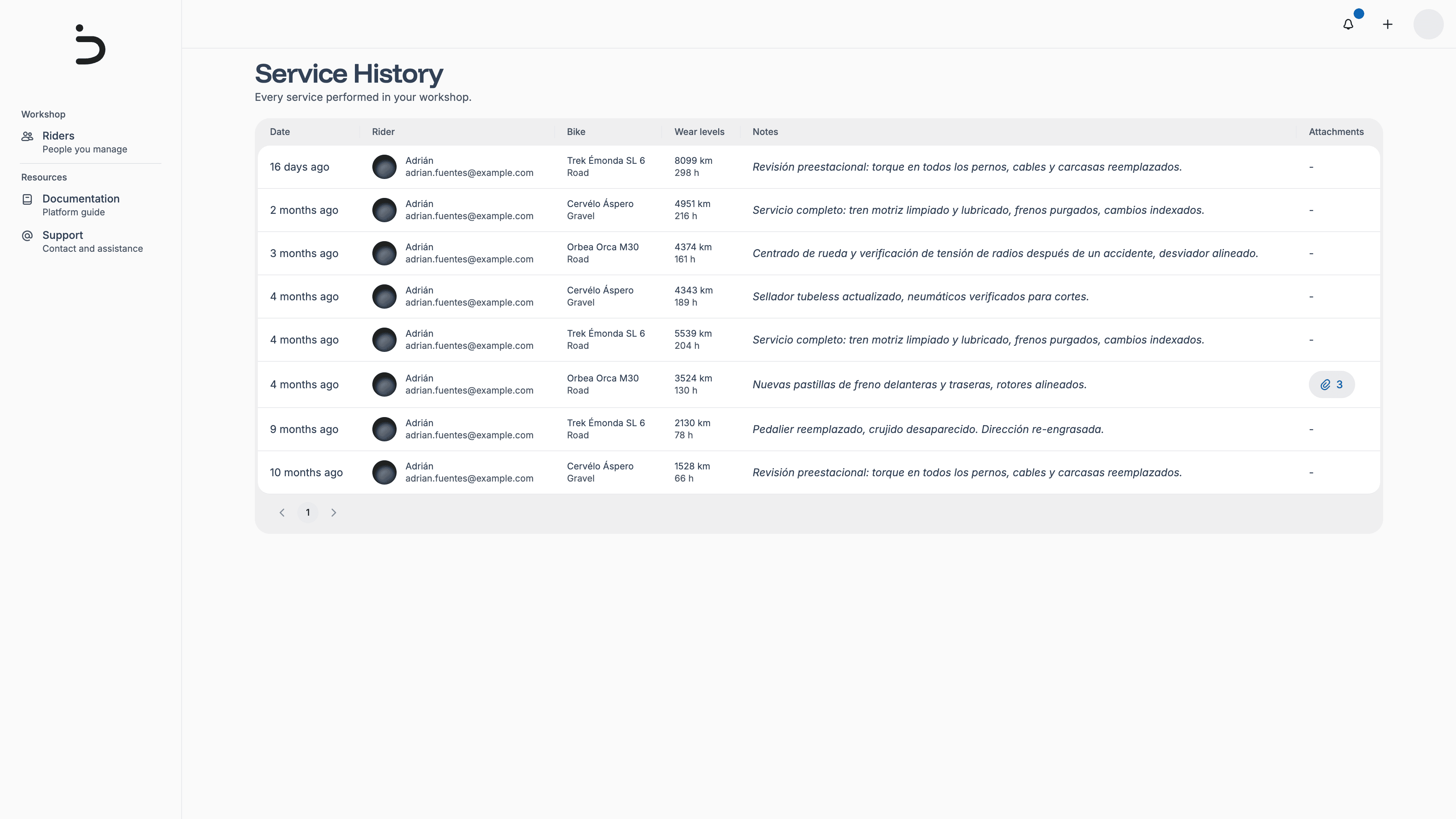
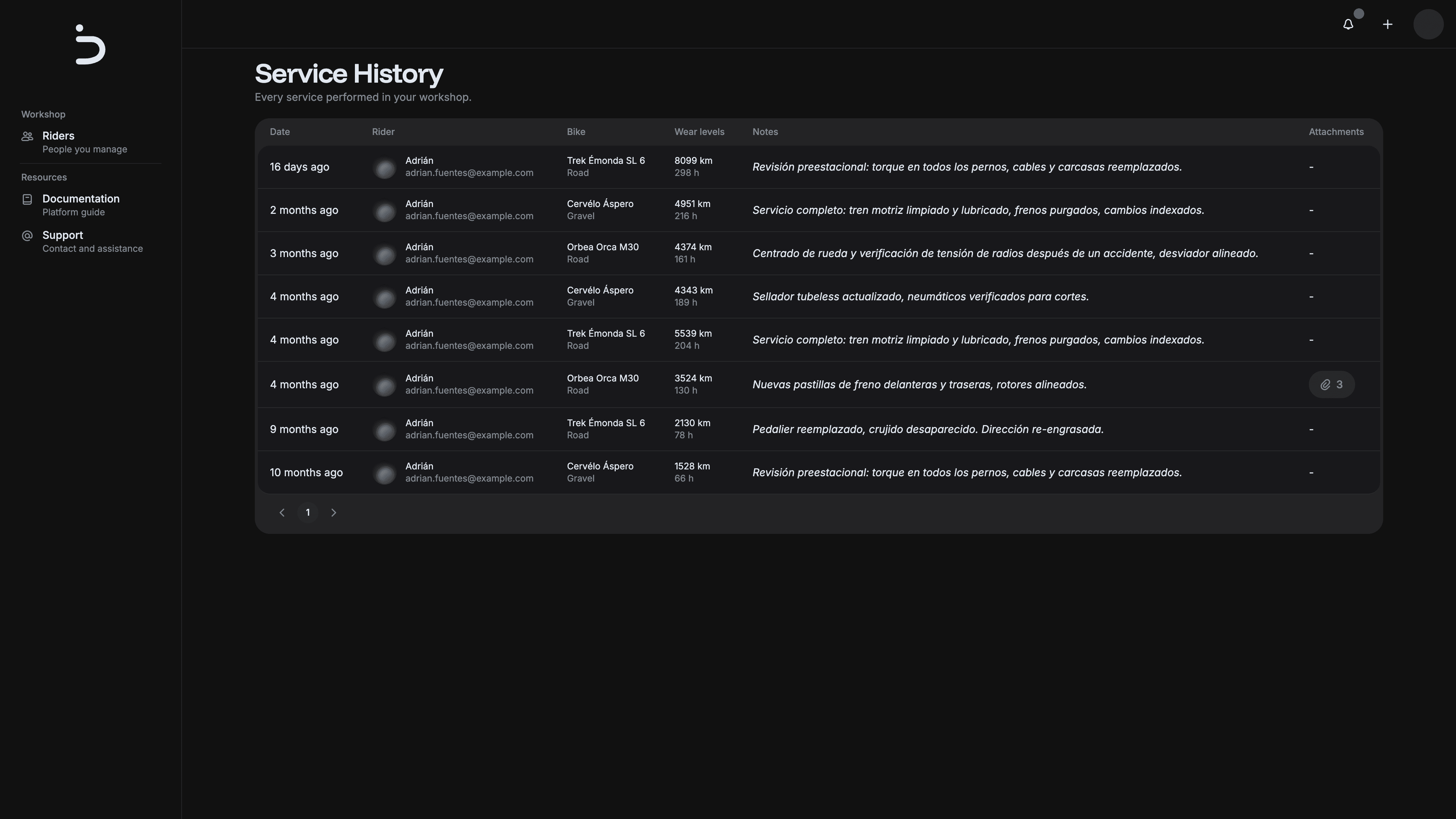
When a rider transfers to another workshop, the maintenance you recorded for them before the transfer doesn't disappear: it stays available from "Services history", in your profile menu, or at this link.
There you'll find every maintenance with its date, the rider and the bike it belonged to, the wear it had at the time, your notes and the attachments you uploaded. Maintenance the new workshop records after the transfer won't show up here.